

Learn the SAMPA English keyboard
Use the legacy SAMPA English layout to insert selected IPA characters directly. Learn why this keyboard’s key positions must be checked separately from the case-sensitive ASCII conventions used in a SAMPA transcription.
 VIDEO TUTORIAL
Enter IPA with SAMPA keys
Use the SAMPA English direct keyboard layout to insert visible IPA glyphs and download Unicode text.
English narration Captions: English
Watch video
What you’ll learn
- Distinguish an ASCII transcription system from a keyboard input layout.
- Enter the supplied sequence ʃɪŋ using confirmed unshifted on-screen keys.
- Recognize when a SAMPA source requires a separate, explicit conversion workflow.
A few symbols, a clearer picture
Standard SAMPA comparison
UCL’s SAMPA table uses uppercase S for the sound represented by IPA ʃ; this is not the site’s direct-key shortcut.
Case matters
Uppercase N in the cited SAMPA table differs from lowercase n; IPA ŋ is a velar nasal.
This layout’s mapping
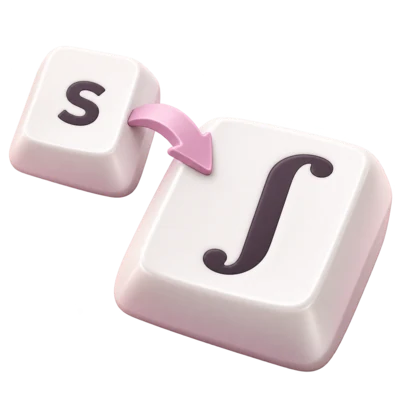
The site’s unshifted key with the Roman hint s directly inserts ʃ.
Another local mapping
This keyboard places ə at the unshifted 1 position; standard SAMPA sources commonly use @.
Recognize two different representations
SAMPA uses ASCII stand-ins; the editor’s finished output here is IPA text.
Read the explanation
SAMPA allows phonetic material to be written with ordinary ASCII characters. Those characters have specified values within a particular convention: the UCL reference uses S for ʃ, T for θ and N for ŋ. Case and sequences matter. A code is meaningful only when you know which convention and language inventory the source follows.
The i2Speak page retains a legacy layout named SAMPA English, but it is an individual-key mapper, not a general SAMPA decoder. Its unshifted s, t and n positions insert ʃ, θ and ŋ. These shortcuts differ from the uppercase SAMPA codes. Learn the displayed output instead of assuming a published ASCII transcription will reproduce its IPA equivalent.
The target sound can be the same while the input conventions differ.
Check the available layer
Use the visible glyphs to avoid importing shortcuts from another system.
Read the explanation
On this layout, i inserts ɪ, n inserts ŋ and the semicolon position inserts ː. Several ordinary letter positions are blank, and the shifted layer is sparse. A blank key is unavailable rather than an instruction to pass through an ordinary letter. The on-screen arrangement shows what a chosen layer can insert.
Turn Smart IPA suggestions off for the tutorial so that direct mappings remain easy to inspect. Click the requested glyphs, or use physical positions after verifying them. Pasting inserts literal clipboard text; it does not run an ASCII transcription through the key mapper. This matters when moving examples from a corpus, database or teaching handout.
A verified direct-key sequence, not a standard SAMPA input string.
Keep the source convention visible
Reliable data exchange needs an explicit record of the notation used.
Read the explanation
An ASCII string and an IPA string may represent related information but are not interchangeable data. If a project requires SAMPA, retain the ASCII source and its documented convention. If it requires IPA, check each target symbol and use a conversion process designed for that source. Do not silently mix ASCII and IPA conventions.
Square brackets around the tutorial output indicate phonetic notation, not a particular English accent. The supplied sequence is schematic. Real word transcriptions need a stated language variety and analysis. The keyboard cannot decide whether the source’s vowel choices, stress marks or segment boundaries are appropriate for your project.
A supplied IPA sequence, with no word pronunciation inferred.
Enter a checked IPA sequence
Prepare the layout
Select SAMPA English, turn Smart IPA suggestions off and leave Shift and Alt Gr off.
Place the caret
Paste [] into a fresh editor line and position the caret between the brackets. This preserves the punctuation literally.
Use the visible symbols
Click ʃ, ɪ and ŋ on the on-screen keyboard. Their unshifted Roman hints are s, i and n. Do not substitute uppercase SAMPA codes for these local positions.
Review and copy
Check that the editor contains IPA glyphs, then use Copy text. Note that this example was entered with a direct layout rather than decoded from a SAMPA file.
Check your understanding
Try each question, then compare your reasoning with the explanation. These exercises stay on this page and do not change your editor text.
Using this in study or professional work
Before processing research data, record the source encoding, SAMPA variant and language inventory. Keep an unchanged source copy so a conversion can be reviewed and reproduced independently of the keyboard used for manual corrections.
Listen to the IPA’s recorded chartListening opens the International Phonetic Association website. Exercises here practice notation and interpretation; they do not assess pronunciation.