

Identify which representation you need
For this task the required output is explicitly IPA: [ʃɪŋ]. Open Smart IPA, turn suggestions off and type an empty [] scaffold. Then select SAMPA English from Keyboard and check that Smart IPA suggestions are off again. Place the caret inside the brackets. This keeps literal punctuation separate from the specialized layout’s remapped keys.
Before using real research material, determine whether its source is IPA, SAMPA or another ASCII notation. Those labels concern the data, not merely the keyboard used to enter it. Keep an original copy of any encoded source. A keyboard shortcut that yields the correct-looking symbol once is not evidence that the whole source can be decoded with the same rule.
Choose the first glyph directly
Click the visible ʃ key at the unshifted s position. The editor now contains a phonetic character between the brackets. In the cited UCL SAMPA table, uppercase S denotes the corresponding sound and lowercase s has a different value. This page’s lowercase position is a local input shortcut, so the two rules must not be described as identical.
Case and sequences can be meaningful in an ASCII transcription system. The preserved layout here does not supply a general parser for those conventions. Its shifted layer is sparse, and some base keys are unavailable. Checking the large glyph before clicking is more reliable than typing a published SAMPA string and hoping the name of the page guarantees a conversion.
Finish the supplied IPA sequence
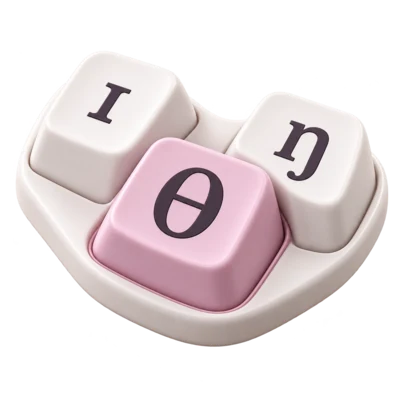
Click ɪ at the i position and ŋ at the n position, with Shift and Alt Gr still off. Read [ʃɪŋ] against the supplied task. The local n key inserts ŋ, whereas the UCL table distinguishes ordinary n from uppercase N for the velar nasal. That is another reason to keep input-position notes separate from a description of standard SAMPA data.
The sample does not ask you to identify a word or infer an English accent. Its square brackets mark a schematic phonetic sequence. If you need a real word transcription, obtain the intended language variety and source analysis first. Direct typing solves character entry; it cannot determine which vowel category, stress pattern or segment sequence the source should contain.
Save the IPA result with its provenance
Choose Download text and open i2speak.txt as UTF-8. Compare the result with the editor and confirm ʃ, ɪ and ŋ in order. The checked download is IPA character data. If your notes also retain an ASCII source, label the two representations clearly rather than placing them in the same column without explanation.
For a larger corpus, use a conversion process designed for its documented SAMPA variant and language inventory, then review representative output. Use this keyboard for deliberate manual entry or corrections where its mappings are known. Pasting a source string into the editor leaves literal text; it does not invoke a full transcription decoder.
Choose the right notation
A few corrections or a complete corpus?
A visible-key workflow is suitable for a small checked edit. A large encoded dataset needs an explicit, reproducible conversion process with a known source convention, not a series of assumed keyboard shortcuts.
Keep IPA and ASCII in separate fields?
When both are useful, retain clearly labelled representations and a note about how one was produced from the other. This makes later review possible without guessing whether a character is a sound symbol or an input code.
Describe the mapping honestly
Explain how the local s position can insert ʃ even though a published SAMPA table uses uppercase S.
Compare with the model answer
The answer must distinguish an interface mapping from an encoded transcription system. It should not claim that SAMPA case is irrelevant.
Common questions
Can I paste a SAMPA string to convert it automatically?
No. Pasting inserts literal text. This layout’s individual-key mappings are not a whole-string SAMPA or X-SAMPA parser.
Why are some ordinary letter keys blank?
The legacy layout defines only selected symbols at those positions. An unavailable key does not promise an ordinary-letter fallback or a complete shifted alphabet.
Does the English label resolve differences between SAMPA variants?
No. Check the exact convention and language inventory used by the source. The layout name alone is not a specification for decoding external data.
Sources & further reading
- University College London: JSRU and SAMPA
A primary university table showing meaningful case distinctions and multi-character ASCII codes.
- International Phonetic Association: interactive chart
The phonetic identities of the IPA symbols selected in the worked task.
- Unicode: IPA Extensions
Encoded character identities for symbols including ʃ and ɪ, independent of the chosen keyboard shortcut.
Put it into practice
Open SAMPA English to try the example, then continue with the topic’s practice exercises.
Explore the practice guide